Sales Campaigns Tab
The Sales Campaigns tab is used to review information about recent sales campaigns, such as the total number of prospects included in the sales campaign and the percentage of prospects that resulted in sales.

|
To access the Sales Campaigns tab, click the |
 (Sales Campaigns) icon on the
 This tab can be viewed in either the List view or the Detailed view.
 List View
The List view of the Sales Campaigns tab is used to view the number of prospects included in sales campaigns, as well as the percentage of prospects that resulted in vehicle sales. To access the List view, click the  (List View) icon.
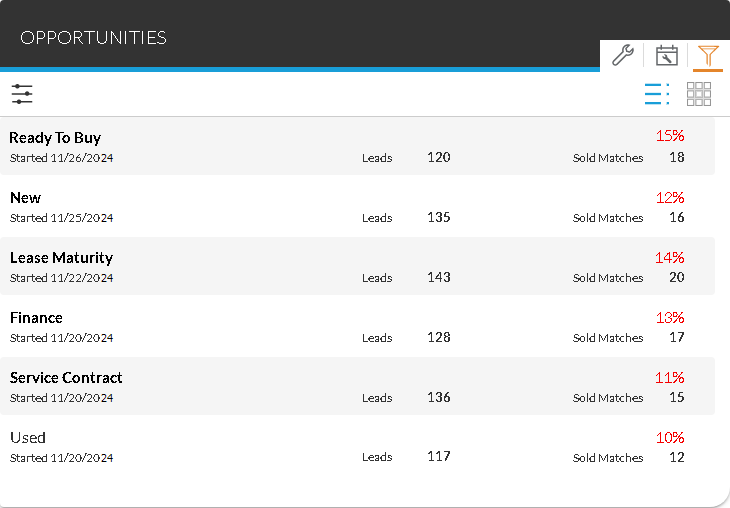
Additionally, to view details about individual prospects included on a sales campaign, click a row to display the Campaign Details panel.
The following fields display on the Sales Campaign tab in the List view.
Campaign Name: (Not labeled) The name of the sales campaign displays. If leads for quick campaigns were automatically sent to FOCUS or the Customer application in the Digital Retail Platform, Automated Campaigns displays. Click this row to display a row for each campaign that was automatically sent.
Sold Percentage: (Not labeled) The percentage of vehicles sold during the sales campaign compared to the total number of prospects included on the campaign displays. The percentage displays in red font if the sales goal has not been met for the campaign. The percentage displays in green font if the sales goal has been met.
Started: The beginning date of the sales campaign displays.
Leads: The total number of prospects included on the sales campaign displays.
Sold Matches: The total number of vehicles sold to prospects included on the sales campaign displays.
Detailed View
The Detailed view of the Sales Campaigns tab is used to view detailed information on sales campaigns, such as the number of new, used, and certified vehicle sales resulting from the sales campaign and the number of sales that were cash, finance, or lease vehicle deals. To access the Detailed view, click the  (Detailed View) icon.

Additionally, to view details about individual prospects included on a sales campaign, click a row to display the Campaign Details panel.
The following fields display on the Sales Campaign tab in the Detailed view.
Campaign Name: (Not labeled) The name of the sales campaign displays.
Sold Percentage: (Not labeled) The percentage of vehicles sold during the sales campaign compared to the total number of leads included on the campaign displays. The percentage displays in red font if the sales goal has not been met for the campaign. The percentage displays in green font if the sales goal has been met.
Started: The beginning date of the sales campaign displays.
User Name: (Not labeled) The name of the user that initiated the campaign displays. If quick campaigns were automatically sent to FOCUS or the Customer application, SYSTEM displays.
Incorrect Email: The number of Email messages sent to invalid Email addresses displays.
Customer Unsubscribed: The number of customers who unsubscribed from receiving Email messages for the campaign displays.
Total Leads: The number of prospects included in the sales campaign displays.
New: The number of new vehicles sold to prospects included in the sales campaign displays.
Used: The number of used vehicles sold to prospects included in the sales campaign displays.
Certified: The number of certified vehicles sold to prospects included in the sales campaign displays.
Finance: The number of vehicle deals financed to prospects included in the sales campaign displays.
Lease: The number of vehicles leased to prospects included in the sales campaign displays.
Cash: The number of vehicle deals sold to prospects and paid for in cash included in the sales campaign displays.
Total Sold: The total number of vehicles sold to prospects included in the sales campaign displays.
Click here for a list of products that may be mentioned in this help file.